Thursday, October 30, 2014

Family Photo: Rita Ann Murosky

The following two photographs are of my grandfathers beautiful sister Rita Ann Murosky. The first photo is dated 1941. Several other family members also have headshots that were taken in this era. 
Michelle M. Murosky: The Murosky Collection &emdash; Rita Ann Murosky
Rita Ann Murosky 1941
14 years old
Michelle M. Murosky: The Murosky Collection &emdash; Rita Ann Murosky
Rita Ann Murosky - 1945
18 years old
Photograph from the Helen Tillie Bukowski Collection. Helen recorded the name on the photograph. Photographer Unknown. Editing and digital restoration by Michelle M. Murosky.

Rita Ann Murosky is my great aunt. She is the sister of my paternal grandfather Arthur Murosky.

Wednesday, October 29, 2014

Family Photo: Frances Philomena Selker, Madeline Gertrude McDonald & Winifred Agnes O'Neill

March 25, 2016 this post has been updated to identify Madeline Gertrude McDonald

This photograph was likely taken at the 50th Wedding Anniversary celebration for Robert Alphonsus McDonald and Winifred Agnes O'Neill in 1945.  Winifred Agnes O'Neill is photographed with her daughter Madeline Gertrude  McDonald and her daughter-in-law Frances Philomena Selker.

Other photos were featured in the blog post Family Photo: Robert A. McDonald & Winifred A. O'Neill 50th Wedding Anniversary.
Michelle M. Murosky: The McDonald Collection &emdash; Frances Philomena Selker, unknown, Winifred Agnes O'Neill
From left to right: Frances Philomena Selker, 
Madeline Gertrude McDonald, Winifred Agnes O'Neill
Winifred was born September 3, 1874 the daughter of two Irish immigrants - Michael O'Neill and Ellen Cunningham.

The photo was found in the Frances Philomena Selker Collection. Photographer Unknown. Editing and digital restoration by Michelle M. Murosky. The photo was found in the Frances Philomena Selker Collection. Photographer Unknown. Editing and digital restoration by Michelle M. Murosky.

Winifred Agnes O'Neill is my 2nd great-grandmother. Her son Loraine Anthony McDonald married Frances Philomena Selker. Loraine and Frances are the parents of paternal Grandmother Mary Eugenia McDonald. Madeline Gertrude McDonald is my 2nd great aunt. 

Tuesday, October 28, 2014

Wedding Portraits: Edward V. Murosky & Margaret Forgash

The wedding Edward V. Murosky & Margaret Forgash was held 07 Sep 1946 at Holy Family Church in Erie, Erie County Pennsylvania. The couple married after Edward returned from his service in the Army during WWII.
Michelle M. Murosky: The Murosky Collection &emdash; Edward V. Murosky & Margaret Forgash Wedding
Margaret and Edward V.
Edward V. Murosky was born 03 March 1925 in Erie, Erie County, Pennsylvania. He was the son of Anthony Harry Murosky, Jr. and Helen Tillie Bukowski. Edward V. Murosky is my great-uncle; he is my grandfather's brother. Margaret was born 1922 in Pennsylvania. She is the daughter of John S. Forgash and Mary. 

Photograph from the Helen Tillie Bukowski Collection. Photographer Unknown. Editing and digital restoration by Michelle M. Murosky.

Edward. V. Murosky is my great uncle. He is the brother of my paternal grandfather Arthur Murosky.

Saturday, October 25, 2014

Family Photo: Leopold George Selker Jr.

Posted to the family photo album website today is a second photograph of Leopold George Selker, Jr. with his drum set. The first photograph is available here.

Michelle M. Murosky: The Selker Collection &emdash; Leopold George Selker, Jr.

Leopold George Selker, Jr. was born 21 June 1918. He was the son of Leopold George Selker, Sr. (28 Sep 1891 - 10 Dec 1955) and Katherine V. Hartle (1894 - 01 Sep 1970). Leopold George Selker, Sr. was the oldest son of Joseph William Selker and Frances Philomena Guth.

His son Leopold indicated that his father played in Blue Baron's Band out of Cleveland and Philadelphia. He also played with Doc Weaver's Pennwood Orchestra and in a trio that backed Janet Blair (from Indian Falls Gap, PA). She was a big singer with Les Brown and later like Patti Page went the Hollywood route.

The photo was found in the Frances Philomena Selker Collection. Leo autographed this for his first cousin Mary Eugina McDonald and her husband Arthur Murosky, my grandparents. Photographer Unknown. Editing and digital restoration by Michelle M. Murosky.

Leopold George Selker, Jr. is my 1st cousin 2x removed. He is a first cousin to my maternal grandmother Mary Eugenia McDonald. Joseph William Selker and Frances Philomena Guth are the common grandparents that link the cousins. 

Wednesday, October 22, 2014

Family Photo: Helen Tillie Bukowski & Anthony Harry Murosky, Jr. Engagement Photographs

My great grandparents, Anthony Harry Murosky, Jr. and Helen Tillie Bukowski were married on September 3, 1917.The couple was married at St. Stanislaus Church in Erie, Erie County, Pennsylvania. Helen was 16 and Anthony was 22.

These photographs were located earlier this spring. Helen had recorded their names and placed these photographs first in the album that included their wedding photographs. These photographs were likely taken before the wedding and may have been engagement photographs. Helen and Anthony both look very young which makes it likely these were taken before their wedding.

Michelle M. Murosky: The Murosky Collection &emdash; Helen Tillie Bukowski
Helen at 15 or 16 depending on when the photograph was taken.
Michelle M. Murosky: The Murosky Collection &emdash; Anthony Harry Murosky Jr.
Anthony at 22

Helen Tillie Bukowski and Anthony Harry Murosky, Jr. are my great-grandparents. Their son Arthur Murosky is my paternal grandfather.

Monday, October 20, 2014

Family Photo: Leopold George Selker Jr.

Posted to the family photo album website today is a photograph from of Leopold George Selker, Jr. with his drum set.
Michelle M. Murosky: The Selker Collection &emdash; Leopold George Selker Jr.
Leopold George Selker, Jr. was born 1919. He was the son of Leopold George Selker, Sr.(28 Sep 1891 - 10 Dec 1955) and Katherine V. Hartle (1894 - 01 Sep 1970). Leopold George Selker, Sr. was the oldest son of Joseph William Selker and Frances Philomena Guth.

His son Leopold indicated that his father played in Blue Baron's Band out of Cleveland and Philadelphia. He also played with Doc Weaver's Pennwood Orchestra and in a trio that backed Janet Blair (from Indian Falls Gap, PA). She was a big singer with Les Brown and later like Patti Page went the Hollywood route.

The photo was found in the Frances Philomena Selker Collection. Leo likely autographed this for his Aunt Frances. Photographer Unknown. Editing and digital restoration by Michelle M. Murosky.

Leopold George Selker, Jr. is my 1st cousin 2x removed. He is a first cousin to my maternal grandmother Mary Eugenia McDonald. Joseph William Selker and Frances Philomena Guth are the common grandparents that link the cousins. 

Sunday, October 19, 2014

Wedding Portrait: Joseph R. Bukowski & Helen C. Juniewicz

Posted to the family photo album website today is a photograph from the wedding of Joseph R. Bukowski and Helen C. Juniewicz.
Michelle M. Murosky: The Bukowski Collection &emdash; Wedding of Joseph R. Bukowski & Helen C.
Wedding of Joseph R. Bukowski & Helen C. Attendants unknown.
Joseph R. Bukowski was the son of Polish immigrants Vincinety Frank Bukowski and Franciska Kwiatkowski.  He was the brother of my great-grandmother Helen Tillie Bukowski. He was born 4 July 1906 in Erie, Erie County, Pennsylvania. 

Helen and Joseph married on June 20, 1936 in Erie, Erie County, Pennsylvania. The couple was recorded as married when recorded in the 1940 Unites States Federal Census on April 9, 1940.


Joseph died on 17 November 1972 in Erie, Erie County, Pennsylvania and is buried in Calvary Cemetery Section 36, Lot No. 1549.

Helen C. Juniewicz was born 3 April 1913 in Pennsylvania. She died on 8 November 1988. She is buried in Erie, Erie County Pennsylvania in Calvary Cemetery.

Photograph from the Helen Tillie Bukowski Collection. Helen recorded the name on the photograph. Photographer Unknown. Editing and digital restoration by Michelle M. Murosky.

Joseph R. Buowski is my 2nd great uncle. He is the brother of my great grandmother Helen Tillie Bukowski. Helen's son Arthur Murosky is my paternal grandfather. 

References:
1. "Pennsylvania, County Marriages, 1885-1950," database with images, FamilySearch (https://familysearch.org/ark:/61903/1:1:VFQ1-S18 : accessed 19 October 2015), Joseph R. Bukowski and Helen C. Juniewicz, 20 Jun 1936; citing Marriage, Pennsylvania, county courthouses, Pennsylvania; FHL microfilm 2,260,040.
2. Year: 1940; Census Place: Erie, Erie, Pennsylvania; Roll: T627_3650; Page: 14B; Enumeration District: 68-76. Record for Joseph Bukowski.

Saturday, October 18, 2014

Family Photo: Double Cousins Frances Winifred McDonald & Anne Marie McDonald

Frances Winifred McDonald & Anne Marie McDonald are double 1st cousins 1x. The back of the photograph is labeled March 1943. The photograph was likely taken in Pittsburgh, Allegheny County, Pennsylvania.
MB Boutiques: The McDonald Collection &emdash; McDonald Cousins: Frances Winifred McDonald & Anne Marie McDonald
Frances Winifred McDonald & Ann Marie McDonald
In the early 1940's Frances lived with her grandparents Robert A. McDonald and Winifred Agnes O'Neill in Pittsburgh, Allegheny County, Pennsylvania. She was working as a stenographer for Attorney at Law. Her parents and siblings were living in Erie, Erie County, Pennsylvania.

Frances Winifred McDonald was born 18 March 1920 in Clarion, Clarion County, Pennsylvania. She was the daughter of Loraine Anthony McDonald & Frances Philomena Selker.

Anne Marie McDonald was born 21 May 1922 in Pittsburgh, Allegheny County, Pennsylvania. She was the daughter of Ambrose Aloysius McDonald and Gertrude Anna O'Neill.

The cousins are double 1st Cousins 1x meaning they are linked through two families. Two McDonald brothers - Robert A. and Ambrose A. married two O'Neill sisters - Winifred Agnes and Gertrude Anna.

Cousin Connection 1 - The  McDonald family
The McDonald family was so large that even though the cousins are a generation once removed they are still the same age. Frances' grandfather Robert A. McDonald (father of Loraine McDonald) was the brother of Ambrose A. McDonald, Anne's father.

Robert and Ambrose were sons of Michael McDonald and Anna Haggerty. Robert was one of the older children born 27 September 1869. Ambrose was the youngest son of  born 24 October 1889. For perspective his first cousin Loraine was born 17 January 1897.

Cousin Connection 2 - The O'Neill family
Frances's grandmother Winifred Agnes O'Neill (mother of Loraine McDonald) was the sister of Gertrude Anna O'Neill, Anne's mother.

Photographer Unknown. Editing and digital restoration by Michelle M. Murosky.

Frances Winifred McDonald is my great aunt. She was the sister of my paternal grandmother Mary Eugenia McDonald. Anne Marie McDonald is my 1st cousin 3x removed. Her father Ambrose McDonald was the brother of my 2nd great grandfather Robert A. McDonald. We share common grandparents in Michael McDonald and Anna Haggerty. Her mother Gertrude Anna O'Neill was the sister of my 2nd great grandmother Winifred Agnes O'Neill. We share common grandparents in Michael O'Neill and Ellen M. Cunningham. 

References:
  1. 1940 United States Federal Census. Year: 1940; Census Place: Pittsburgh, Allegheny, Pennsylvania; Roll: T627_3670; Page: 10B; Enumeration District: 69-593. Record for Robert McDonald
  2. 1940 United States Federal Census. Year: 1940; Census Place: Erie, Erie, Pennsylvania; Roll: T627_3650; Page: 3A; Enumeration District: 68-77. Record for Loraine McDonald.

Tuesday, October 14, 2014

Family Photo: The Gaczkowski Children

Posted to the family photo album website today is a photograph of siblings Arthur & Dorothy Gaczkowski.  A photograph of Arthur Gaczkowski which may have been a studio portrait is also posted.
Michelle M. Murosky: The Bukowski Collection &emdash; Arthur & Dorothy Gaczkowski
Arthur & Dorothy Gaczkowski
Arthur and Dorothy were the children of City of Erie Alderman Frank J. Gaczkowski and Teo Fila Bukowski. Teo Fila was the sister of my great-grandmother Helen Tillie Bukowski. Teo Fila was the oldest daughter of Vincinety Frank Bukowski and his wife Franciska Kwiatkowski.

Arthur was the oldest born August 15, 1911. Dorothy was born in 1912. Both children were born in Erie, Erie County, Pennsylvania. Tragically in January 1915 when both were toddlers their mother died a few days after giving birth to their youngest brother. Their young brother also died during child birth. Teo Fila and the infant child were buried in Trinity Cemetery in Erie, Erie County. At age 14 my great-grandmother Helen stepped in to help raise and care for the children. The children were special to her and she had several photos of them in her collection of old photographs.
Michelle M. Murosky: The Bukowski Collection &emdash; Arthur Gaczkowski
Arthur Gaczkowski.
The writing on the photograph is his Aunt Helen's.
Arthur's life was unfortunately cut short. At age 17 he was admitted to St. Vincent's Hospital and surgery was performed. His death certificate indicated he had an obstruction in his intestines and appendicitis. He passed away on April 17, 1928. He was buried in Trinity Cemetery in Erie, Erie County, Pennsylvania. This must have been especially tragic for Dorothy - of the three children she was the only one to live to adulthood.

Photograph from the Helen Tillie Bukowski Collection. Helen recorded the name on the photograph. Photographer Unknown. Editing and digital restoration by Michelle M. Murosky.

The Gaczkowski children are my 1st cousins 2x removed. Vincinety Frank Bukowski and Franciska Kwiatkowski are our common grandparents. My great grandmother Helen Tillie Bukowski was the aunt of the children. Helen's son Arthur is my paternal grandfather. 

References:
  1. Pennsylvania, Death Certificates, 1906-1944, Gaczkowski , Baby
  2. Pennsylvania, Death Certificates, 1906-1944, Gaczkowski, Teo Fila F
  3. Pennsylvania, Death Certificates, 1906-1944, Gaczkowski , Arthur

Monday, October 13, 2014

Family Photo: Margaret Chanis

Posted to the family photo album website today is a photograph of Margaret Chanis on the day of her First Holy Communion.

Margaret Chanis was born August 22, 1923 in Forest City, Susquehanna County, Pennsylvania. She was the daughter of Lithuanian immigrants John Chanis and  Margaret Murosky.  Margaret Murosky is my great-aunt, the sister of my great-grandfather Anthony Harry Murosky, Jr. The family relocated from Forest City to Luzerne County, Pennsylvania in 1930. In 1938 they were living at 424 1/2 Main Street. Sadly Margaret died young at age 14. On July 21, 1938 she passed away in Wilkes -Barre General Hospital after contracting meningitis. Her death certificate indicates she is buried at St. Mary's Cemetery in Pringle, Luzerne County, Pennsylvania. 

Michelle M. Murosky: The Murosky Collection &emdash; Margaret Chanis

Photograph from the Helen Tillie Bukowski Collection. Helen recorded the name on the photograph. Photographer Unknown. Editing and digital restoration by Michelle M. Murosky.

Margaret Chanis is my 1st cousins 2x removed. Anthony Murosky, Sr. and Eva Zielinski are our common grandparents. My great grandfather Anthony Harry Murosky, Jr. was Margaret's uncle. His son Arthur is my paternal grandfather. 

References: 

  1. Naturalization Petitions of the U.S. Circuit and District Courts of the Middle District of Pennsylvania, 1906-1930, Record for John Chanis 
  2. Pennsylvania, Death Certificates, 1906-1924, Record for Margaret Chanes

Saturday, October 11, 2014

Launch of the Old Family Photographs Website

I am pleased and very excited to announce the launch a new website to work in conjunction with my research blog. The website has been established to preserve and share the large collections old family photographs that are in my care. Many of the photographs belonged to my great grandmothers. These include the Helen Bukowski photo collection and the Frances Philomena Selker photo collection. Many of the photographs previously unknown to many of the descendants will now be available.

The new website homepage - the menus and content can be accessed by the top navigation bar.
Michelle M. Murosky: Blog Images &emdash; Home Page


The old family photographs are organized into collections by surname. To accesses the surname collections select Photo Collections from the navigation bar.
Michelle M. Murosky: Blog Images &emdash; Navigation Menus

Selecting a collection brings up a gallery with all of the photographs included in that collection. The photographs within each collection are presented in chronological order.

Michelle M. Murosky: Blog Images &emdash; Family Photo Collection

Clicking a photograph within a gallery will bring up the individual photograph and will also provide details about the photograph.  Michelle M. Murosky: Blog Images &emdash; Photo with label

Selecting the slideshow option will allow all of the photographs in a gallery to cycle through with the photograph details presented to the side.

Michelle M. Murosky: Blog Images &emdash; Slideshow Option

There is no copyright on the old family photographs. I felt it was important to not copyright these photographs – these photographs are not my work. I am the simply the caretaker doing my part to ensure the photographs survive for future generations.

The photographs are available for download. To download a photograph right click on the image and select the download option. This will allow you to save a high resolution copy to your computer.

The website also has numerous sharing options. The photographs are available be shared on social media or sent by email.

Michelle M. Murosky: Blog Images &emdash; Share

The site also has an option to purchase printed copies of the old photographs. Many of these images would look beautiful in frames. To purchase a photograph click the “Buy” button and follow the instructions in the popup menu. Orders can be placed via pay pal.

The photographs currently shared are just the start. The collections currently available include:
There are many more old photographs to be shared. My goal will be to update the site on a regular basis. The updates section of the photography site will be used to highlight to highlight new content. Updates will also be provided via the Facebook page - Our Ancestors - The Murosky & McDonald Ancestral Lines if you wish to follow along that way.

Michelle M. Murosky: Blog Images &emdash; Family Photo Site Updates

To learn more about the work to setup the website and prepare the photographs for sharing please visit the Portraits of a Life section. Portraits of a Life is a project to digitize, archive, restore and share the large collection family photographs that are in my care.

Thursday, October 9, 2014

Family Photo - The Haggerty Farm

Robert H. Haggerty (1805- 25 June 1880) and his wife Rebecca M. Easly (1806 - 1881) were some of the earlier settlers to arrive in Farmington, Clarion County, Pennsylvania.  They are mentioned in the History of Farmington County, Chapter LIII History of Farmington Township Page 515:

"In 1831 the solitude of the wilderness in the northeastern portion of the township was broken by James Black, who came from Sugar Creek, Armstrong county, and settled on the homestead near North Pine Grove. The country abounded in game of all sorts, deer, bears, wolves[,] panthers, wild cats, wild turkeys, and pigeons, besides the smaller species. The streams were alive with trout. Within a year or two came his brothers, John and Patrick Black; Thomas Meagher, Charles and Dennis Boyle, David McDonald, Thomas Walley, Robert and Archibald Haggerty, David Griffin, Henry McNairney; soon after these, William Wilkinson and Arthur McCloskey; the latter, with his family, came from Philadelphia in 1835. These settlers were all Catholics, the majority of them from Butler and lower Armstrong counties"

They arrived along with Archibald Haggerty, Robert’s brother.  The family relocated to Farmington from Sugar Creek, Armstrong County, Pennsylvania. For more information on the location of the farm please view the blog post 1877 - Farmington Township,Clarion, Pennsylvania.

Robert Haggerty and Rebecca Easly had five children:
  1. Andrew Haggerty – (1839 – 2 July 1863)
  2. Thomas C. Haggerty – (11 February 1841 – 27 October 1920)
  3. James Hagety – (21 October 1842 – 24 June 1908) 
  4. Anna Haggerty – (May 1845 – 30 September 1927)
  5. Elizabeth Haggerty – (25 January 1847 – 21 January 1914)
[Note James used the spelling Hagerty in place of Haggerty]

Michelle M. Murosky: The Haggerty Collection &emdash; Haggerty Farm - Farmington, Clarion, Pennsylvania, USA

This photograph shows great barn at the Haggerty Farm in Farmington, Clarion County, Pennsylvania. Robert's sons Thomas C. and James are believed to be shown in the photograph. The Haggerty family was known for raising draft horses shown in the photograph. 

Left to Right:
  • Estimated on the left is Thomas Haggerty.  
  • The children are believed to be Thomas C. Haggerty and Bridget McDonald's children. Robert Haggerty (1865-1938), John B. Haggerty (1866-1881) and Andrew J. Haggerty (1868-1918).
  • James Hagerty is shown on the right with the two draft horses. James would take over the farm and would build the farmhouse that stands to this day. 
This is likely the only photographs of John B Haggerty. He died at a young age during the November 1881 Diphtheria Outbreak.

The original photo was found in a crawl space below the farmhouse. Benjamin Patrick Norris, Robert's descendant, had the opportunity to visit the farm earlier this year and was shown this photograph. The current owner of the farm has the original and graciously shared a copy with the descendants. The original image was damaged but was able to be digitally restored by Michelle M. Murosky.

References:
  1. Father Peter Helbron's Greensburg, PA Registers – Baptisms
  2. Davis, A. J., History of Clarion County Pennsylvania; Chapter LIII History of Farmington Township Page 515
  3. 1840 U.S. Census, Pennsylvania, Venango, Farmington, 1840 United Sates Federal Census Schedule; Online Images, Record for Robert Haggerty
  4. 1850 U.S. Census, Pennsylvania, Clarion, Farmington, 1850 United States Federal Census Schedule; Online Images, Record for Robert Haggerty
  5. 1860 U.S. Census, Pennsylvania, Clarion, Farmington, 1860 United States Federal Census Schedule; Online Images, Record for Robert Haggerty
  6.  1870 U.S. Census, Pennsylvania, Clarion, Farmington, 1870 United States Federal Census Schedule; Online Images, Record for Robert Haggerty
  7. 1880 U.S. Census, Pennsylvania, Clarion, Farmington, 1880 United States Federal Census Schedule; Online Images, Record for Robert Haggerty
  8. 1870 U.S. Census, Pennsylvania, Clarion, Farmington, 1870 United States Federal Census Schedule; Online Images, Record for Thomas Haggerty
  9. 1880 U.S. Census, Pennsylvania, Clarion, Farmington, 1880 United States Federal Census Schedule; Online Images, Record for Thomas Haggerty
  10. Pennsylvania, Death Certificates, 1906-1924 – Haggerty, Elizabeth
  11. Pennsylvania, Death Certificates, 1906-1924 – Hagerty, James
  12. Pennsylvania, Death Certificates, 1906-1924 – Haggerty, Thomas
  13. McDonald Family Bible

Sunday, October 5, 2014

St. Mary's Cemetery: Crown, PA - Find A Grave Updates

On July 2, 2012 I visited the St. Mary's Cemetery in Crown, PA with my father and my aunt.  The Cemetery is adjacent to St. Mary's Church. On July 9, 2013 I visited the cemetery a second time with my Benjamin Norris, my 3rd cousin 2x removed. St. Mary’s Cemetery is the final resting place for some of the oldest ancestors in my family including Robert Haggerty and his wife Rebecca Easly (my 4th great grandparents) and Michael McDonald and his wife Anna Haggerty (my 3rd great grandparents). There are numerous other family members who were also laid to rest in the cemetery. Some of these individuals were highlighted in past blog posts - St. Mary's Cemetery: Crown, PA - McDonald Direct & Indirect Ancestors and St. Mary's Cemetery: Crown, PA - Haggerty Direct & Indirect Ancestors.


St. Mary's Cemetery

When I visited in 2012 I attempted to photograph as much of the old section of the cemetery as I could. The new section was quite large – in the new section I only photographed surnames in my family tree Haggerty, McDonald and O’Neill. The weather unfortunately did not cooperate. Many of photographs were taking in light rain while my father held an umbrella over my camera. At one point the light rain turned into a downpour and we had to stop and return later in the day.

It was my hope on that rainy day in July that I would one day share these photos. Over the years my family tree research has benefited from the work of volunteers. I have been fortunate to locate the grave sites of many family members on the Find A Grave website. All of those graves were documented and uploaded by volunteers. I wanted to be able to give back to the community which has been so helpful to me. It is also important to me that we preserve our history and properly remember our veterans. St. Mary’s Cemetery is the final resting place for several Civil War Soldiers and numerous WWII military veterans.

Over the past few weeks I started a small project with the goal of sharing the photos of St. Mary’s Cemetery.  The photos were cleaned and enhanced if needed to better view the tombstone markers. The photos were then labeled and populated with meta data. The final step was to upload these photos to the corresponding records for St. Mary’s Cemetery at the Find A Grave Website. If the family members are in my tree I have also incorporated the photos into my ancestry.com tree.

All of the photos with exception of two which had tombstones that were unreadable were uploaded. The cemetery features several family plots with a large common stone and individual headstones. In these cases the common stone is also uploaded to each individual headstone.

I am pleased to announce that 123 photos were added to St. Mary’s Cemetery. When I started the cemetery was approximately 18% photographed. Today the cemetery is approximately 28% photographed. Additionally six additional memorials were added to this cemetery.

As I uploaded photos I also updated some of the existing memorials. Through my research I was aware of many relationships between family members. In some cases parents are now linked to children – in others spouses with separate grave markers are linked to each other.  Maiden names have also been added to the memorials for women when known.

Photographs of tombstones of Veterans include:

My hope is that these updates to the St. Mary’s Cemetery will benefit other researchers in time. 

Saturday, September 13, 2014

Portraits of a Life – Step 4: Edit, Enhance & Restore

To bring the original family portraits and snapshots into the digital realm there are several steps that I follow. A series of blog posts will explain the workflow that is used for the Portraits of a Life project.

Step 4: Edit, Enhance & Restore
Step 5: Identification
Step 6: Finalize Organization
Step 7: Share 

The fourth step in the process is to edit, enhance and restore the digital images you took in Step 1: Create a Digital Image. Step 4 is the step that typically takes the most time. I often to do editing in batches and work through several images in one setting. The edits go faster in time and with practice. It also depends on how much restoration the photograph requires.

If you are working to process a lot of digital images it is helpful to create a work plan. This is where Step 3: Preliminary Sort is helpful. The purpose of Step 3 is to provide overall perspective on what photographs you have digitized.  Understanding what you have helps you make a work plan to move forward. In my workflow I am working to edit the oldest photographs in my collection first. These include tin type photographs from the 1800’s and the photographs from my great grandmothers' collections. Once I have edited the older images I will begin to edit the photographs of the younger generations.  

Your workflow priority will be a function of what images are in your collection and your archive goals. Making a work plan makes Step 4 less overwhelming. The ultimate goal is to break your archive project down into a series of small steps so that you can reach the ultimate goal of sharing your heirloom photographs.

I edit my images Adobe Photoshop version CS5. Note that some menus and Adobe references may not be the same in newer versions. When I make edits I typically work in the preliminary sort directory. For more details see Step 3: Preliminary Sort.

I have made the decision to edit all of my images to commercial printing standards.  This will ensure if I opt to print these images in the future the images are properly formatted.  There is a difference between viewing a picture on a screen and a commercially printed image. The CMYK commercial printing processes blends four colors Cyan, Yellow, Magenta and Black together to produce a range of color. If black and white images are not prepared correctly the images may appear tinted when printed.

When I started working on my family history book a few years ago I developed my workflow based on Blurb’s advice  to produce black and white images for the commercial printing process. Blurb is the commercial printing company I have opted to work with for printed family tree books.  The company offers quality professional products that can be ordered in single quantities. 

The workflow also produces images that can also be printed successfully at larger scales. For examples of photos reproduced in this workflow view my family tree book Our Ancestors The Book: Volume I: The Murosky and Bukowski Family History.  The blog post Step 1: Create a Digital Image also shows comparisons between the original images and the reproductions.  

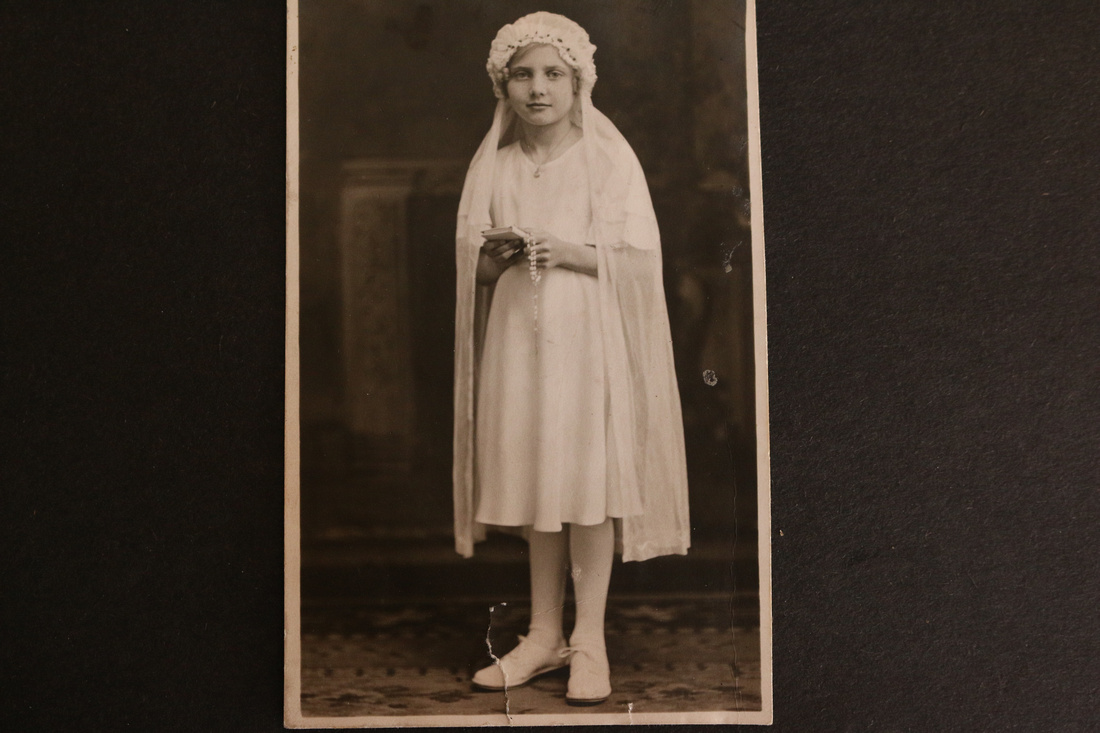
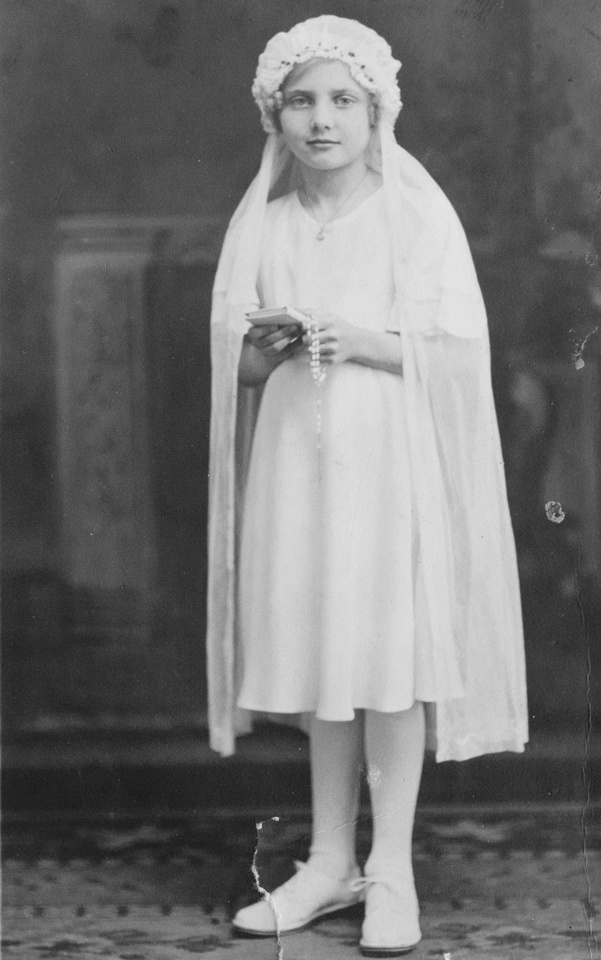
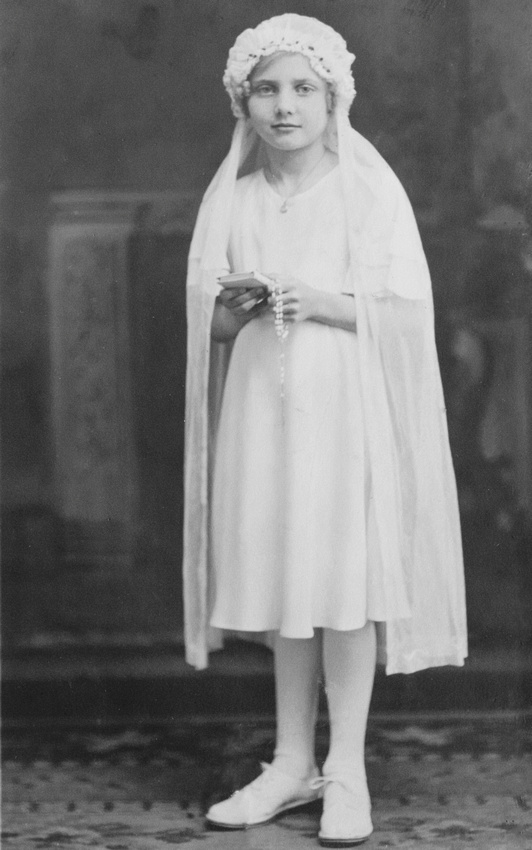
To explain the steps in my workflow to edit, enhance and restore the old photographs I will walk you through an editing example. This is a first communion photograph of my great grandmother Helen Tillie Bukowski, This image previously unknown to most of my family was included in the large collection of photographs I obtained this spring. 

1.       Open the raw image or the digital negative in Adobe Photoshop

If you took raw images in Step 1: Create a Digital Image you will have a raw image and  an additional image file. The raw image will have the file extension .raw.  . 

Note that the .raw files from some newer digital cameras will not open in older version of Adobe Photoshop.  Adobe has a digital negative converter (DNG Converter) available for download.  The DNG Converter allows .raw files to be converted to digital negatives which are .dng files. The .dng files can then be opened in Adobe Photopshop. I delete the .raw file after the conversation. These files can be large and take up a lot of space on your computer. 

A preliminary edit screen will open with .raw and .dng images. I opt to not make edits in this screen and click “open image”.
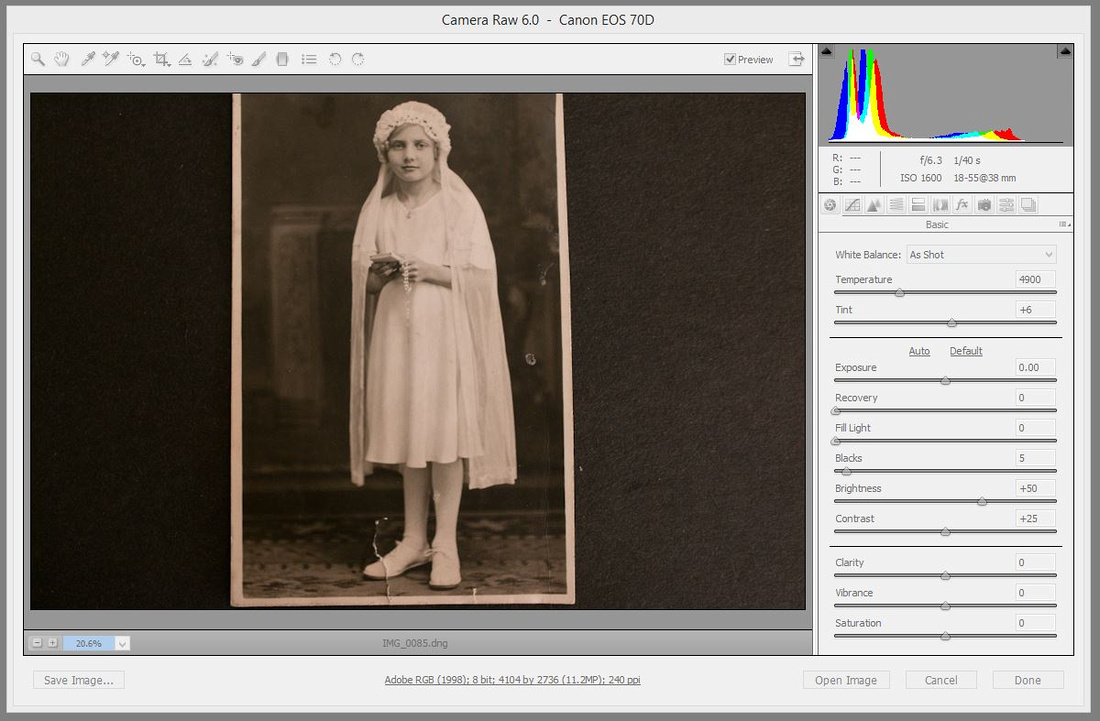

Michelle M. Murosky: Portraits of a Life &emdash; Step 4: Edit, Enhance & Restore
The preliminary open screen in Adobe Photoshop

Michelle M. Murosky: Portraits of a Life &emdash; Step 4: Edit, Enhance & Restore
The original image open in Photoshop before editing.

2. Save a copy of the file as a Photoshop file

It is important to save a copy to maintain the original. You may want to reference the original at a later time or go back to the original if you are not happy with the first set of edits. To save a copy select the File menu, select Save As a popup window will open. 
  • Save In file location: Use the pull down menu to change the directory if needed.
  • File name: This field will be populated based on the original image.  When I am working I use the same name with different file type extensions. This keeps all of the images together.
  • Format:  Select Photoshop from the options
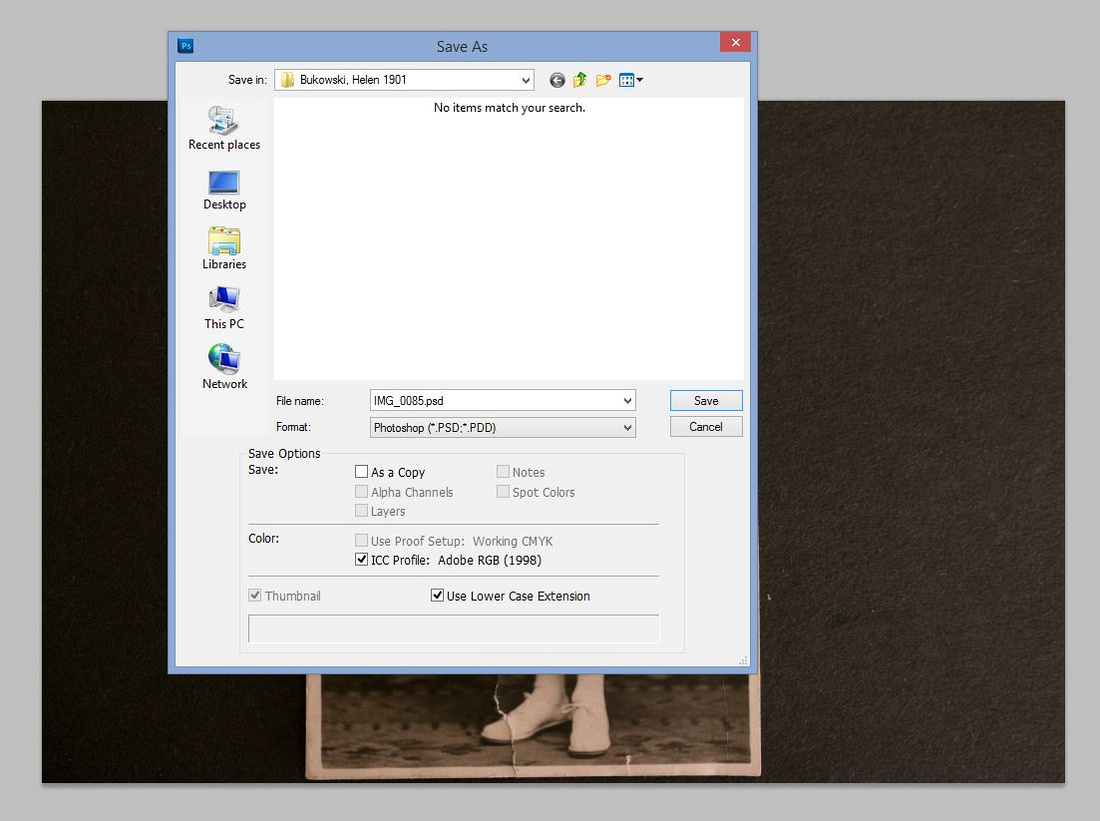

    Michelle M. Murosky: Portraits of a Life &emdash; Step 4: Edit, Enhance & Restore
    The Save As window in Adobe Photoshop
    3. Rotate and Crop the image

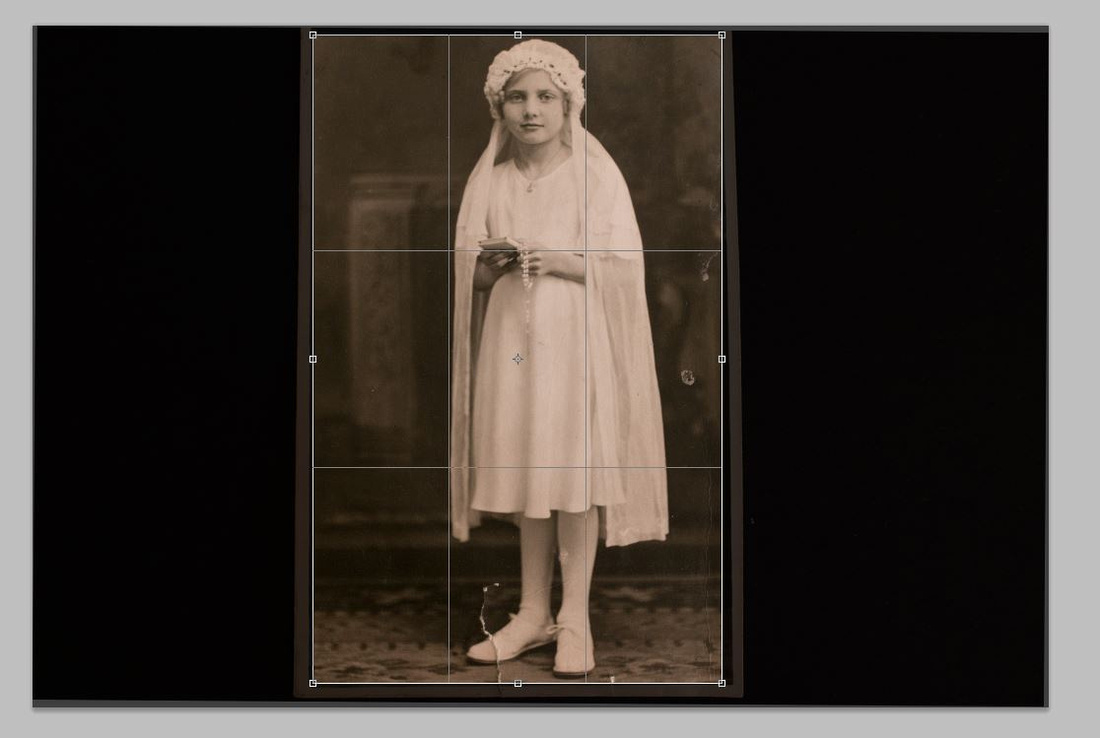
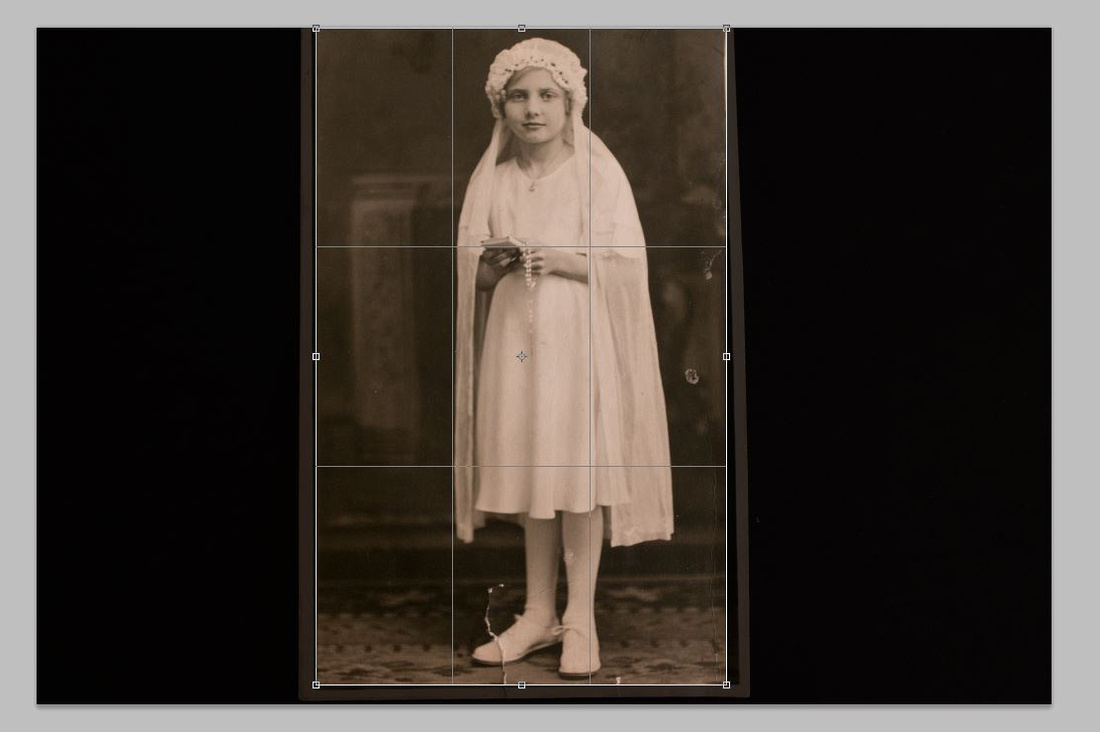
    When the original image was re-photographed the camera captured the background in addition to the original image. . 


    If an image is obviously crooked I will rotate the image before cropping. If I am not sure how far off the image is I will select the crop tool from the menu and select the crop zone shown in the white outline below. The crop zone can be viewed without completing the crop. Using the ESC key on your keyboard allows you to undo the selection. If you do crop and wish to go back select the Edit menu, Step Backward to revert to the original image. 
    Michelle M. Murosky: Portraits of a Life &emdash; Step 4: Edit, Enhance & Restore
    A test of the crop zone to explore if image rotation is required.
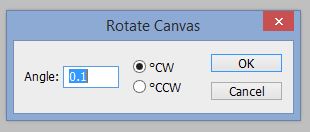
    To rotate the image select the Image menu, select Image Rotation, Arbitrary… This option brings up a menu which allows the rotation angle and the option for CW or CCW. I will often use a small angle for example 0.1 and rotate a few times to achieve the rotation needed. Every image is different. 
    
    Michelle M. Murosky: Portraits of a Life &emdash; Step 4: Edit, Enhance & Restore
    The Adobe Photoshop rotation screen that opens after selecting the Image menu, select Image Rotation, Arbitrary…
     
    As you can see from the image below more of the original can now be captured based on the slight rotation. To complete the crop. Select the Crop tool again, highlight the crop zone and click enter on your keyboard. The cropped image will now be displayed.

    
    Michelle M. Murosky: Portraits of a Life &emdash; Step 4: Edit, Enhance & Restore
    Crop zone shown on rotated image.
    Michelle M. Murosky: Portraits of a Life &emdash; Step 4: Edit, Enhance & Restore
    The cropped image.
    4. Convert the image Black and White

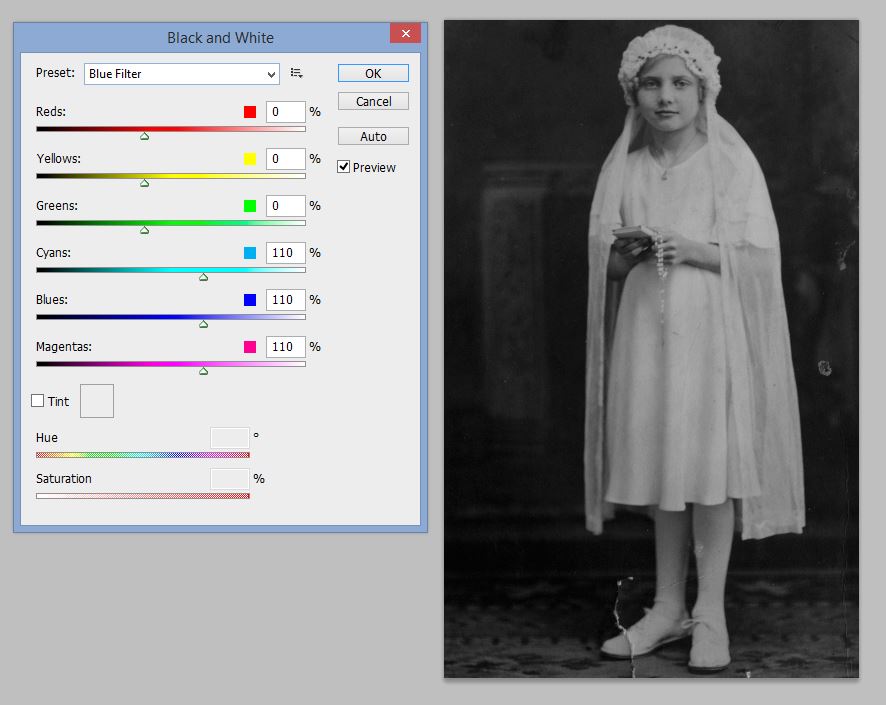
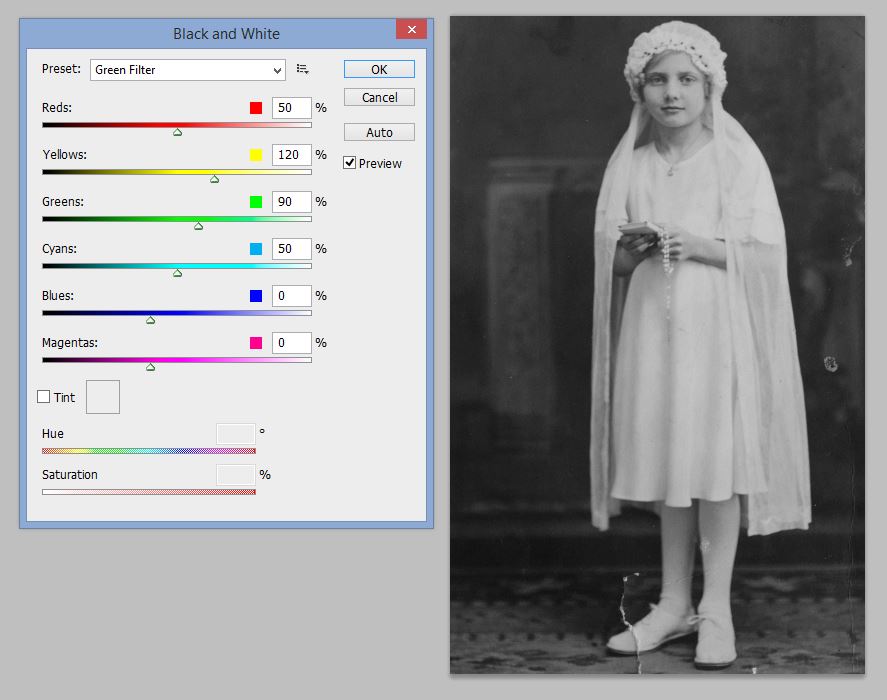
    The conversion to Black and White is the part of the process that ensures the image will print correctly in a commercial printing process. Select the Image menu, Adjustments, Black and White. This option will open the black and white menu. The preset option has different black and white filters. Select the top filter – “Blue Filter” and then use the down arrow on your keyboard to pre-view your image with the different filter options. Choose the option which adds the most clarity your image but does not wash out the image. I have found the “Green Filter” works well on many old photographs to capture the details. However it depends on the particular image. After selecting the filter option you like click okay to apply the filter.

    Note that if the old photograph is colorized I skip this step.
    Michelle M. Murosky: Portraits of a Life &emdash; Step 4: Edit, Enhance & Restore
    Convert the image Black and White. Example of a  Blue Filter.
    Note the difference between the blue filter (above) and the green filter (below). In this example the green filter brightens the image and enhances the background while maintaining the details.
    Michelle M. Murosky: Portraits of a Life &emdash; Step 4: Edit, Enhance & Restore
    Convert the image Black and White. Example of a  Green Filter. This is the option I selected.
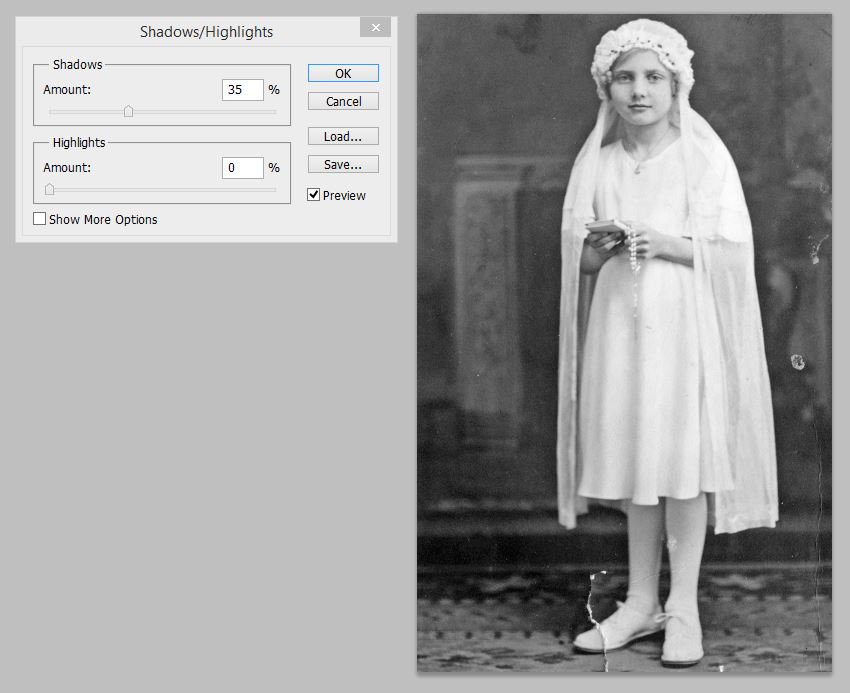
    5. Check the Shadows/Highlights

    Some old photographs appear very dark and have a lot of shadows. Photoshop has an option to remove the shadows from an image. Select the Image menu, Adjustments, Shadows/Highlights. Photoshop will automatically adjust the shadows in the image. The sliders can be adjusted as well. The preview of the image will be shown. To keep the changes select ok. If you don’t want to keep the adjustment select cancel.

    Some images will clean up nicely with this option and others will appear grainy or over processed. For the particular image I have opted not to use this adjustment.  When editing I may test this step on an image. If I don’t like the edit I won’t choose this option.
    Michelle M. Murosky: Portraits of a Life &emdash; Step 4: Edit, Enhance & Restore
    Check the Shadows/Highlights
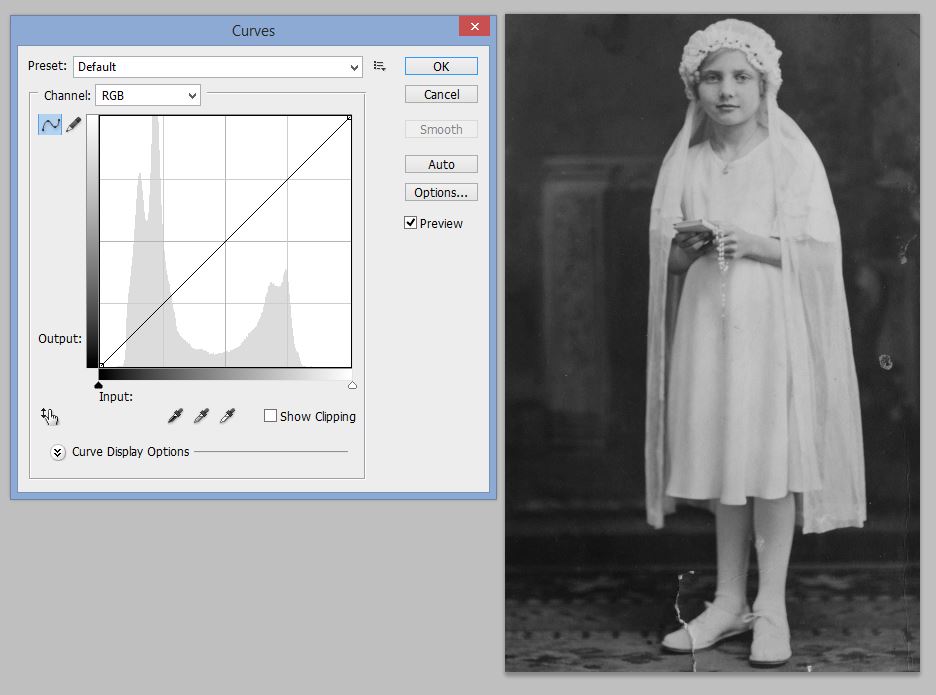
    6. Adjust the Curves

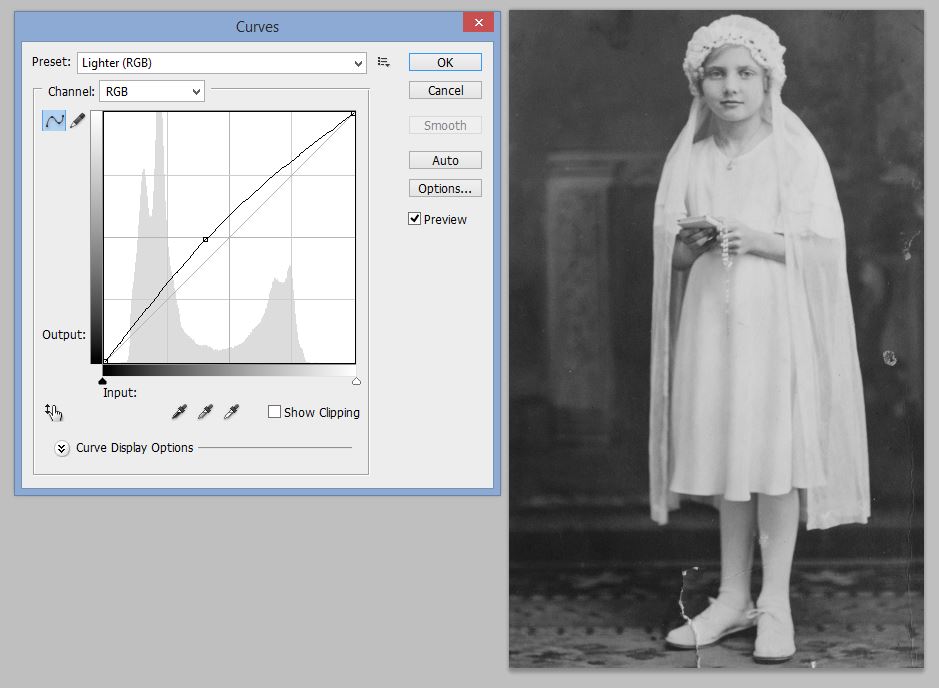
    Changing the curves can enhance and sharpen the image. This adjustment can often add clarity. To adjust the curves select the Image menu, Adjustments, Curves… The curves menu is similar to the Black and White menu. Selecting the top option and using the down arrow on your keyboard will allow you to pre-view the different options. Working through the different options will enhance different elements of the photograph – some options brighten, some darken and some sharpen. The solution is unique to the image. In most examples I have found the pre-set curves have worked well to enhance the old photographs. Occasionally I will tweak one of the pre-set curves manually. The curves can also be manually adjusted by selecting the box in the graph and moving it.
    Michelle M. Murosky: Portraits of a Life &emdash; Step 4: Edit, Enhance & Restore
    Adjust the Curves - default image

    The above image is the default image before applying curves. In this example I opted to use lighter (shown below) as this option balanced out the darker background. It also did not wash out her face or loose detail in her dress. Some of the additional shadows have been removed. 
    Michelle M. Murosky: Portraits of a Life &emdash; Step 4: Edit, Enhance & Restore
    Adjust the Curves - Lighter (RGB). The option selected. 
    In cases where the original image is very dark after performing the above steps I will also explore exposure adjustments. To access the exposure tool select he Image menu, Adjustments, Exposure…  The exposure and the offset can be adjusted using the sliders or by changing the number in the white box. Note that the changes in exposure can easily washout out black and white images. I tend to only use this option if the image still appears dark after checking the Shadows/Highlights and Curves. Most images can be enhanced without adjustments to exposure.
    

    7. Final Edits

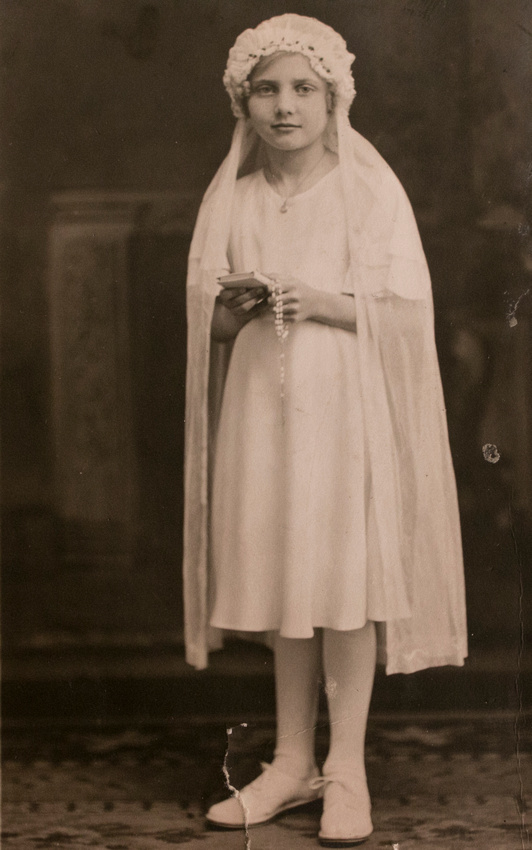
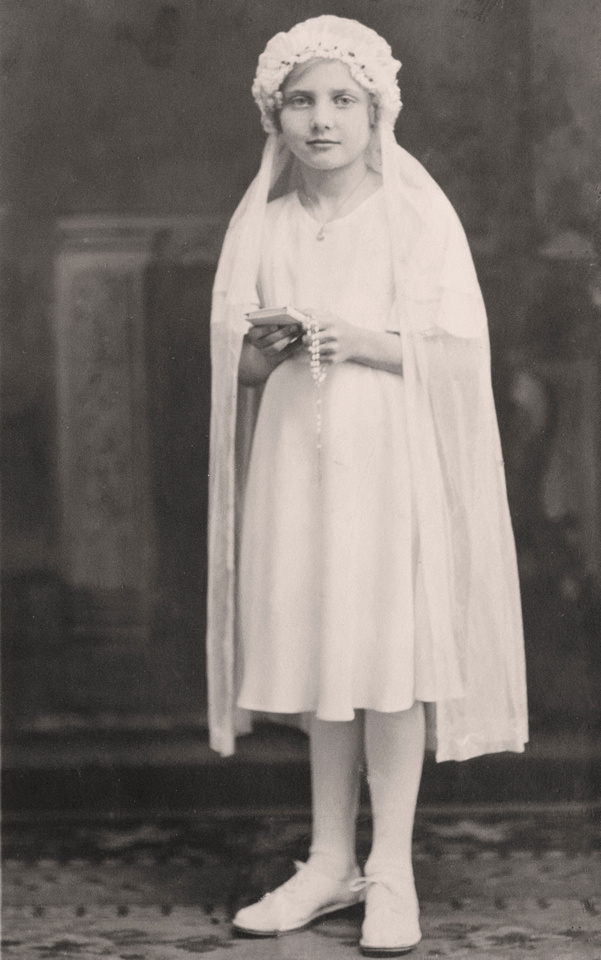
    Depending on the image some spotting and discoloration may have been repaired by completing the above steps. Some spots or damage may still be present. These imperfections can be removed using different tools. The Spot Healing Brush Tool is one tool I use to remove spots and repair damage from the images. I will typically adjust the size of the spot healing tool based on how large the spot is. I have found working to the size of the spot results in a cleaner final image. Depending on how much you are cleaning up this step can more or less time. There are several other tools in Adobe for making repairs to old images. When done correctly the spots or damage will no longer be noticeable.
    Michelle M. Murosky: Portraits of a Life &emdash; Step 4: Edit, Enhance & Restore Michelle M. Murosky: Portraits of a Life &emdash; Step 4: Edit, Enhance & Restore
     Left image before final edits. Right image after final edits.

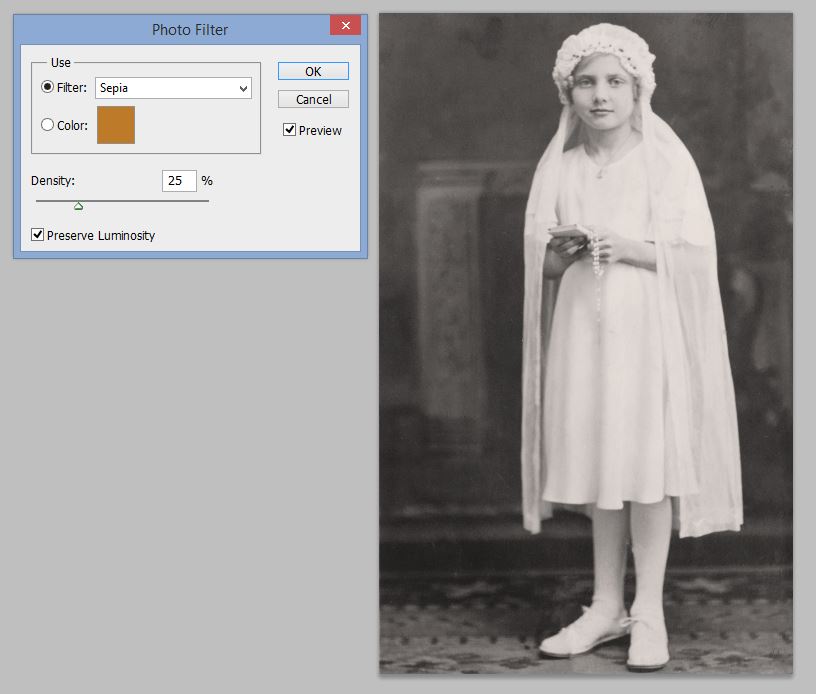
    8. Apply a Sepia Filter


    The final step is to apply a sepia filter to the image. Applying a sepia filter also gives the image some warmth. A sepia filter also helps to balance out the images when printed. To add the sepia filter select the Image menu, Adjustments, Photo Filter… Select Sepia from the pull down options. The slider can be adjusted to enhance the filter if desired.
    Michelle M. Murosky: Portraits of a Life &emdash; Step 4: Edit, Enhance & Restore
    The Adobe Photoshop Photo Filter Screen
      
    9. Save a high resolution copy

    After completing my edits I save my work.I also save a high resolution copy of the image in .tiff format. To save a copy select the File menu, select Save As a popup window will open. Under Format select the option for TIFF (*.TIF, *.TIFF). A .tiff file will be a high resolution image that can be used for printing.
     
    Michelle M. Murosky: Portraits of a Life &emdash; Step 4: Edit, Enhance & Restore
    A review the Original Image before Edits.
    Michelle M. Murosky: Portraits of a Life &emdash; Step 4: Edit, Enhance & Restore
    The final image after Editing, Enhancing & Restoration.


    Our Ancestors - The Murosky & McDonald Ancestral Lines did not receive any compensation for providing a this workflow using Adobe Photoshop. Our Ancestors - The Murosky & McDonald Ancestral Lines did not receive any compensation for recommending Blurb commercial printing services.